SPF records are important for getting your email messages properly authenticated by the Sender Policy Framework. A proper setup of SPF records is an important part of establishing a good foundation for email deliverability.
Your SPF records indicate which sending email servers and IP addresses are allowed to send emails on behalf of your domain. When your email hits the receiving servers, they perform lookups against your SPF record values to see if the sending server or IP is on your list of allowed senders.
If so, the message passes SPF authentication. If not, the message fails SPF authentication and could get quarantined (placed into spam) or outright rejected.
The purpose behind this authentication process is to filter out illegitimate messages from sending servers and IPs that you did not approve.
SPF record requirements
You need an SPF record for every domain or subdomain that you actively send emails from.
SPF records do not replace the need for DKIM and DMARC records. All three work in conjunction with each other, and you need all three types of records for a complete email authentication setup.
Creating an SPF record
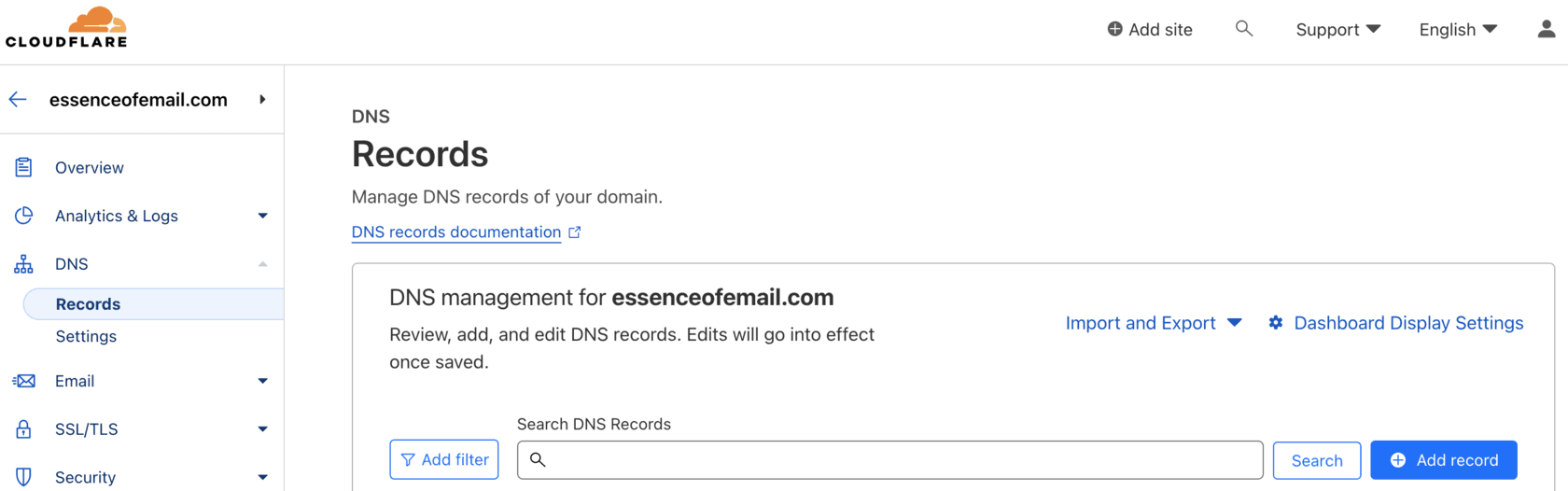
To create an SPF record, add a TXT-type record into your DNS records host. Log into your web-hosting or CDN console, navigate to the DNS records section, and add a new record. Before you do, you need to understand the structure of SPF tags and values.
Here is an example of a typical SPF record:
Let's break down the component parts:
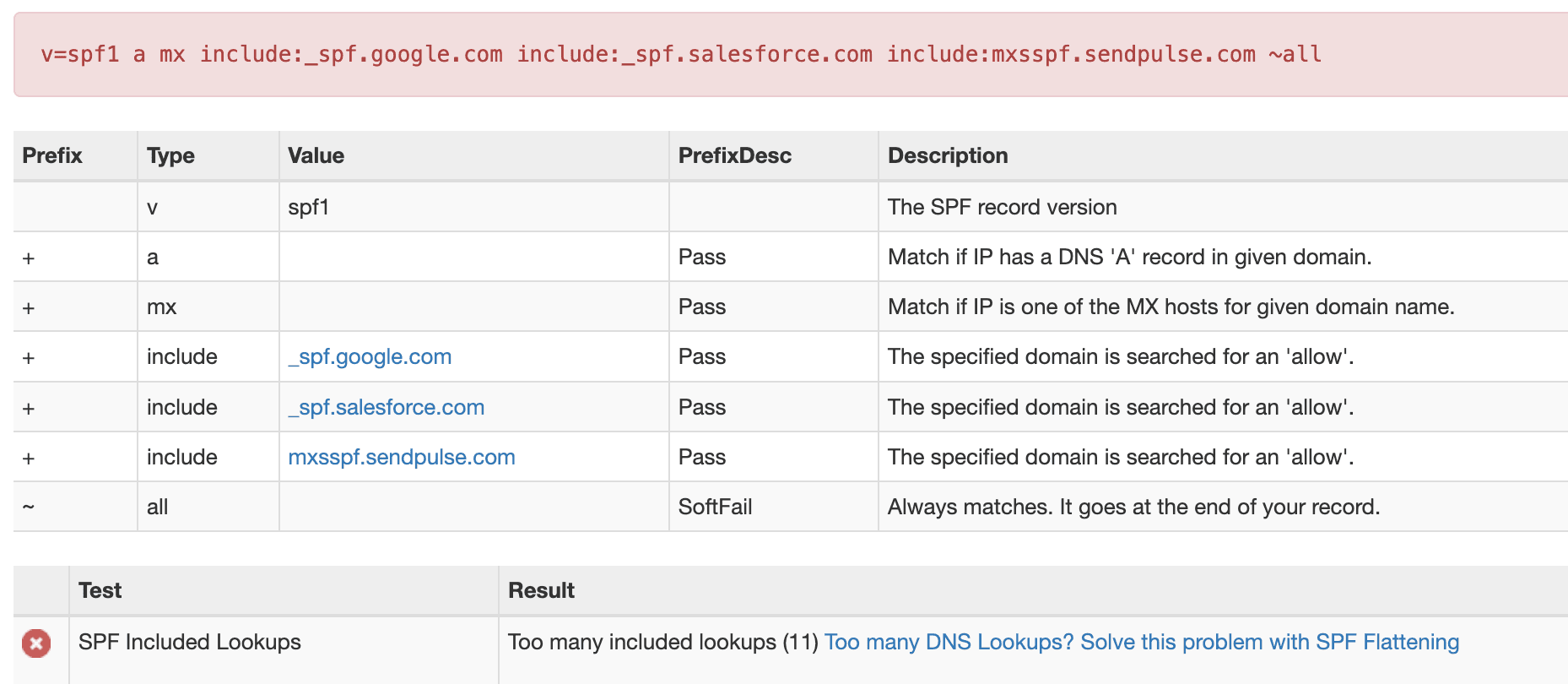
v=spf1— Identifies the record as an SPF-type record. This tag is required and must appear at the beginning.aandmx— When evaluating SPF authenticity, accept the message as passing if the A-records or MX-records of the sending domain in the Return-Path match. While these are often included, if you are trying to minimize SPF lookups, you may be able to remove these in cases where the referenced IPs in your A and MX records are not actually being used as outbound mailing IPs in the Return-Path.include:— Explicit authorizations of domains allowed to send email on your behalf. In this example, that indicates Google (via Gmail) and Salesforce. Each time you want to authorize a new platform to send emails on your behalf, add anotherinclude:to the existing SPF record. Include values can also be direct IP addresses or ranges, such asip4:192.168.0.1orip4:192.0.2.0/24.~all(tilde) — Indicates a Soft Fail. This is differentiated from-all(dash), which indicates a Hard Fail and instructs receiving servers to reject the email. These indicators were precursors of DMARC, where you define how you want emails treated in the case of failed SPF authentication. Avoid using+all(whitelists all sources) or?all(neutral — neither passes nor fails).
Getting SPF record values
Each of your email sending platforms should have detailed deliverability documentation that guides you on the exact include: values to add to your existing SPF records. This is the best place to search for these values. Every sending platform needs to resolve eventually to a valid SPF record, or SPF authentication will fail and cause deliverability problems.
In many cases, the platforms you send from use their own domains in the Return-Path, which bypasses the need to include them in your SPF records since the lookup occurs on their DNS. However, this creates a problem of SPF alignment, which we cover below.
Common SPF mistakes
SPF PermErrors can occur when:
- One domain has multiple SPF records
- The SPF record contains syntax errors
- DNS lookups exceed the allowed limit of 10
Multiple SPF records
You should never have more than one SPF record on each domain or subdomain. If you have two separate SPF records:
Combine them into one record:
This is a common pitfall because most ESP instructions say "add a TXT record," but if you already have an existing SPF record, what you really need to do is add the include: part to the existing record.
If you have no SPF records at all, receiving servers won't have a reference point for SPF evaluation. Different inboxes may treat this differently — from business as usual to outright rejecting your messages. Always define an SPF record for optimal deliverability.
SPF syntax errors
Syntax errors are straightforward: a missing required v=spf1 tag, invalid symbols, or malformed include values will cause the record to fail validation.
Excessive DNS lookups
SPF records are limited to 10 DNS lookups. It is deceptively easy to hit this limit because a single include: element can generate multiple lookups when the referenced domain has its own nested includes.
If you are exceeding the threshold, you can delete unnecessary includes or look into SPF record flattening, which converts text-based lookups to raw IP addresses and ranges that do not count against the limit. Tools like MXToolBox can help you check your current lookup count.
SPF alignment
SPF references the records of the domain in the Return-Path, not the Friendly From address. The authentication process runs through lookups on the SPF record for that domain until it either finds a match or reaches the end and fails.
When sending from third-party ESPs, the ESP's own domain is often used by default in the Return-Path — not your domain. This means SPF itself can register as a pass, but SPF alignment (checked as part of DMARC evaluation) will fail because the Return-Path domain doesn't match your From domain.
The solution is a Custom Return-Path domain. You set a specific subdomain on your own domain to be used as the Return-Path for emails sent by the ESP. This is accomplished by creating a CNAME record that points to a domain provided by the ESP, achieving SPF alignment even when using a third-party sender.
Summary
- You need one SPF record per sending domain or subdomain.
- SPF works alongside DKIM and DMARC as the email authentication trio.
- Never create multiple SPF records — combine
include:values into one. - Stay under the 10 DNS lookup limit; flatten if necessary.
- Use a Custom Return-Path to achieve SPF alignment with DMARC.
Not sure if your SPF records are configured correctly? Our comprehensive Find & Fix audit includes a full review of your email authentication stack — SPF, DKIM, and DMARC — so nothing falls through the cracks. Schedule a call →